

Use the button above to download the VitalTrack Windows application.
VitalTrack is an application that lets users monitor biosignal and motion data collected from a VitalTrack device in real time.
The application provides Bluetooth connectivity to VitalTrack devices as well as data collection, storage, and visualization.
Using the VitalTrack App
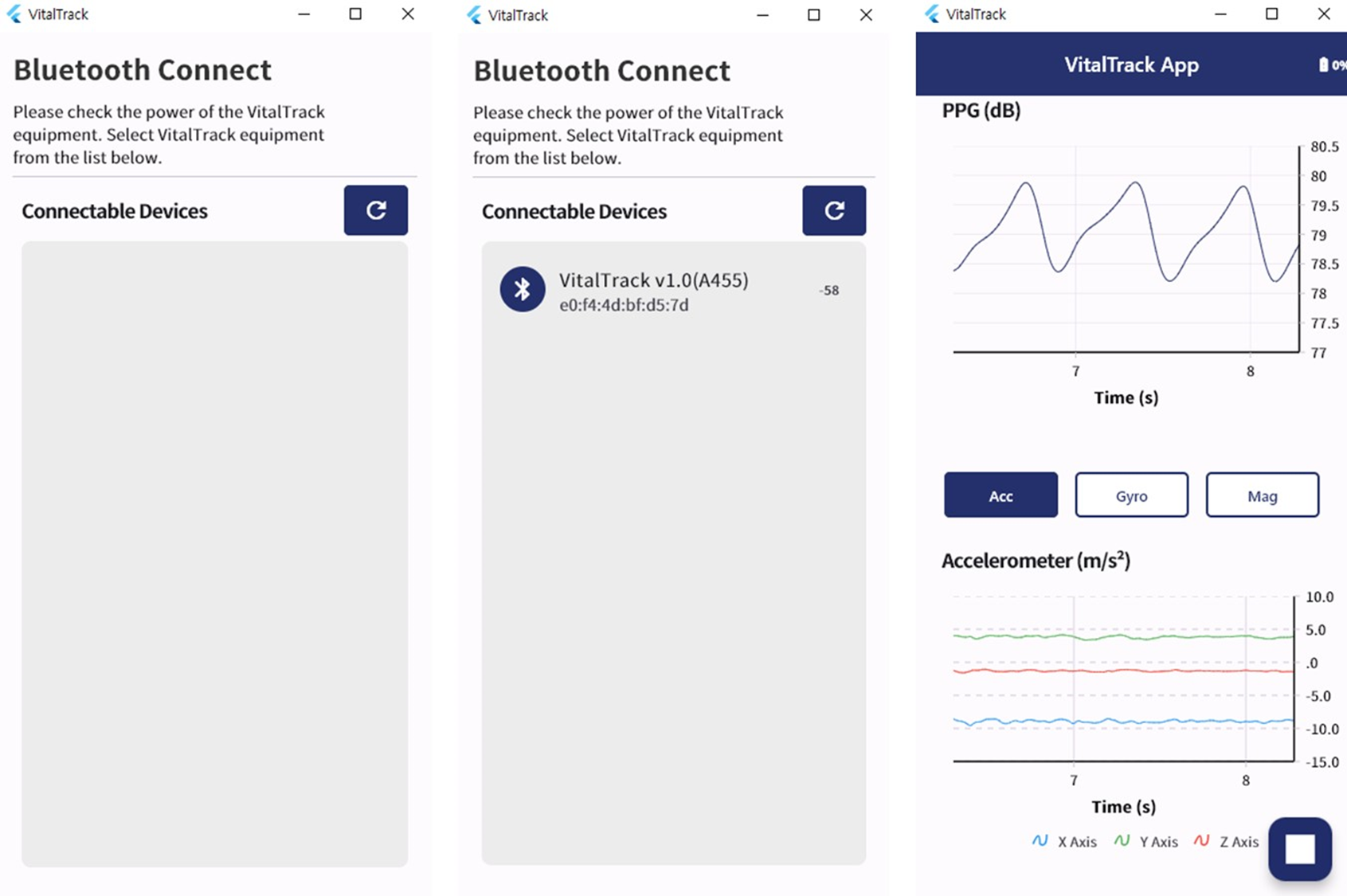
1. Initial App Setup (Windows)
1.1 Enable Bluetooth
Enable Bluetooth on your PC before launching the app. In Windows, go to Start > Settings > Bluetooth & devices and turn on Bluetooth, or click the Bluetooth icon in the taskbar's Quick Settings panel.
1.2 Launch the App
Launch the VitalTrack application.
2. Connect the Device
2.1 Search for and Pair the Device
Start a device search in the VitalTrack app. When a nearby VitalTrack device appears in the list, select it to complete pairing.
3. Data Collection and Visualization
3.1 Start Data Collection
Click the Start Measurement button (the play-shaped floating button at the bottom right) to begin collecting real-time data from the VitalTrack device. The collected data is visualized as graphs on the screen.
3.2 View PPG Data
View PPG (photoplethysmography) data as a real-time graph. PPG is used to detect and measure changes in blood flow, representing variations in blood volume with each pulse.
3.3 View IMU Data
View IMU (Inertial Measurement Unit) data in real time. IMU data includes accelerometer, gyroscope, and magnetometer readings that can be used to track movement.
3.4 Save Data
Click the Stop Measurement button (the stop-shaped floating button at the bottom right) to stop the measurement. Data collected since the measurement started is automatically saved to the PC's local storage.
Use Windows File Explorer to access the saved data at the path below.
Save location: This PC\Documents\VitalTrack Data\